LEARNING, ONE TAP AWAY
Install ShuleCloud on your phone.
Download the protected Android student app for secure lesson viewing. It blocks screenshots and does not allow resource downloads, printing, or sharing.
Download Android app Current Android version: 1.1.2After download, tap the file and allow installation from your browser if Android asks. You may need to enable Install unknown apps for Chrome.
- Tap Download Android app.
- When the download finishes, open Chrome’s Downloads and tap the ShuleCloud APK file.
- If Android asks, allow Install unknown apps for Chrome, then tap Install.
- Open ShuleCloud from your home screen and sign in.
The browser version is optional and does not have the Android secure-screen protection.
 ShuleCloudHoliday learning for Kenya
SHARE SHULECLOUD
Scan to get the app
Open your phone camera and point it at this QR code. Tap the link that appears to open the official ShuleCloud installation page.
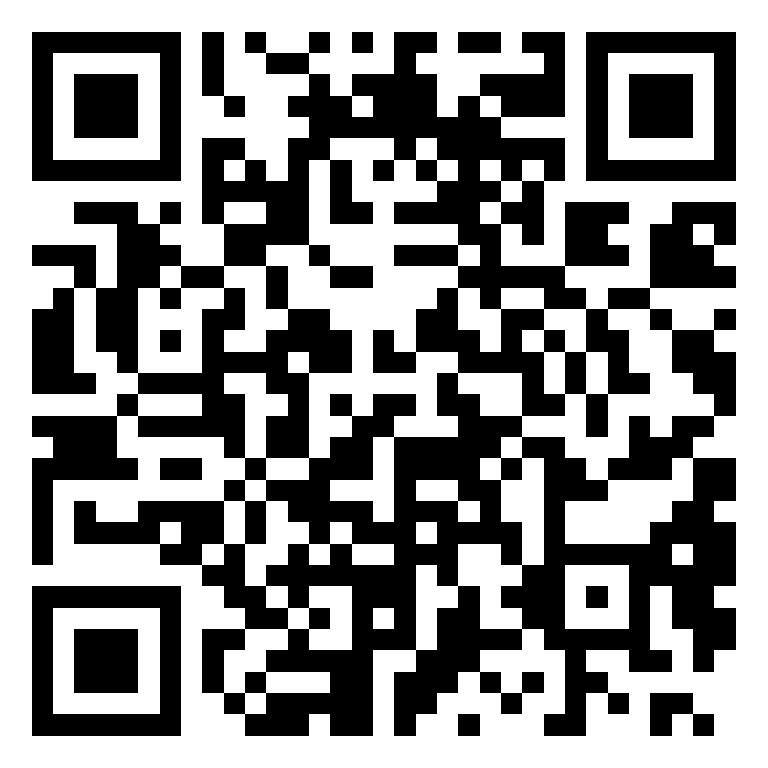
to get the ShuleCloud app.SHULE.CLOUDOfficial installation page
Download and install
Tap Download Android app above, then open the downloaded APK. If asked, allow Chrome to install apps. This is the protected student app.
Safari on iPhone
Tap Share in Safari, then Add to Home Screen. The button above cannot open Apple’s install menu automatically.
Chrome or Edge
Use the install icon in the address bar, or open the browser menu and select Install ShuleCloud.
An internet connection is needed for lessons and account data. The offline screen will explain when you are disconnected.